
Meet the DroneBridge Fleet Manager: From First Flash to Fleet Maintenance
Configuring one DroneBridge device is straightforward. Preparing another batch, keeping settings consistent, and updating a fleet takes a different set of tools. For drone manufacturers and show operators, these jobs become part of everyday work as the number of aircraft grows.
DroneBridge Drone Light Show Edition (DLSE) provides the data link for light show drones. The Commercial Support Suite helps with the work around that link: installation, configuration, licensing, diagnostics, and maintenance. The new desktop Fleet Manager brings many of those tasks into one interface, alongside the suite’s command-line tools and Python library.
Fleet Manager arrived with Commercial Support Suite v1.1.0. Today’s v1.1.1 update adds direct bulk settings editing, making it easier to apply a deliberate change across selected devices.
See what is on the network
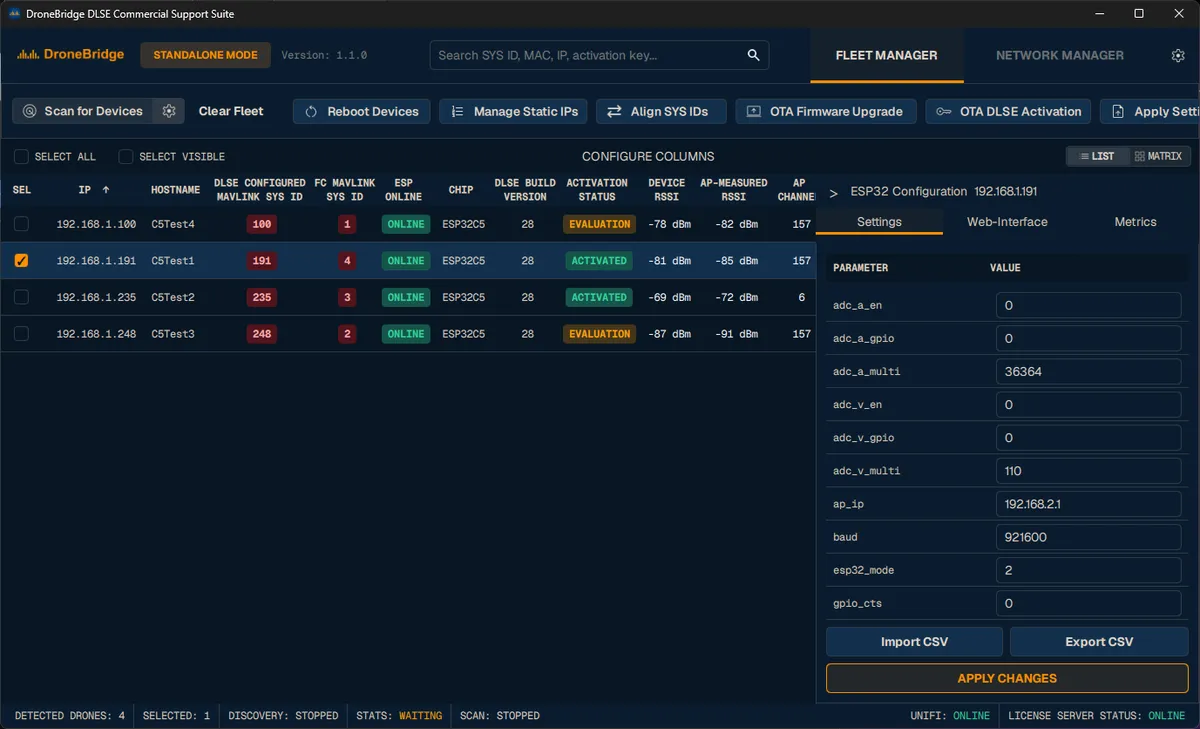
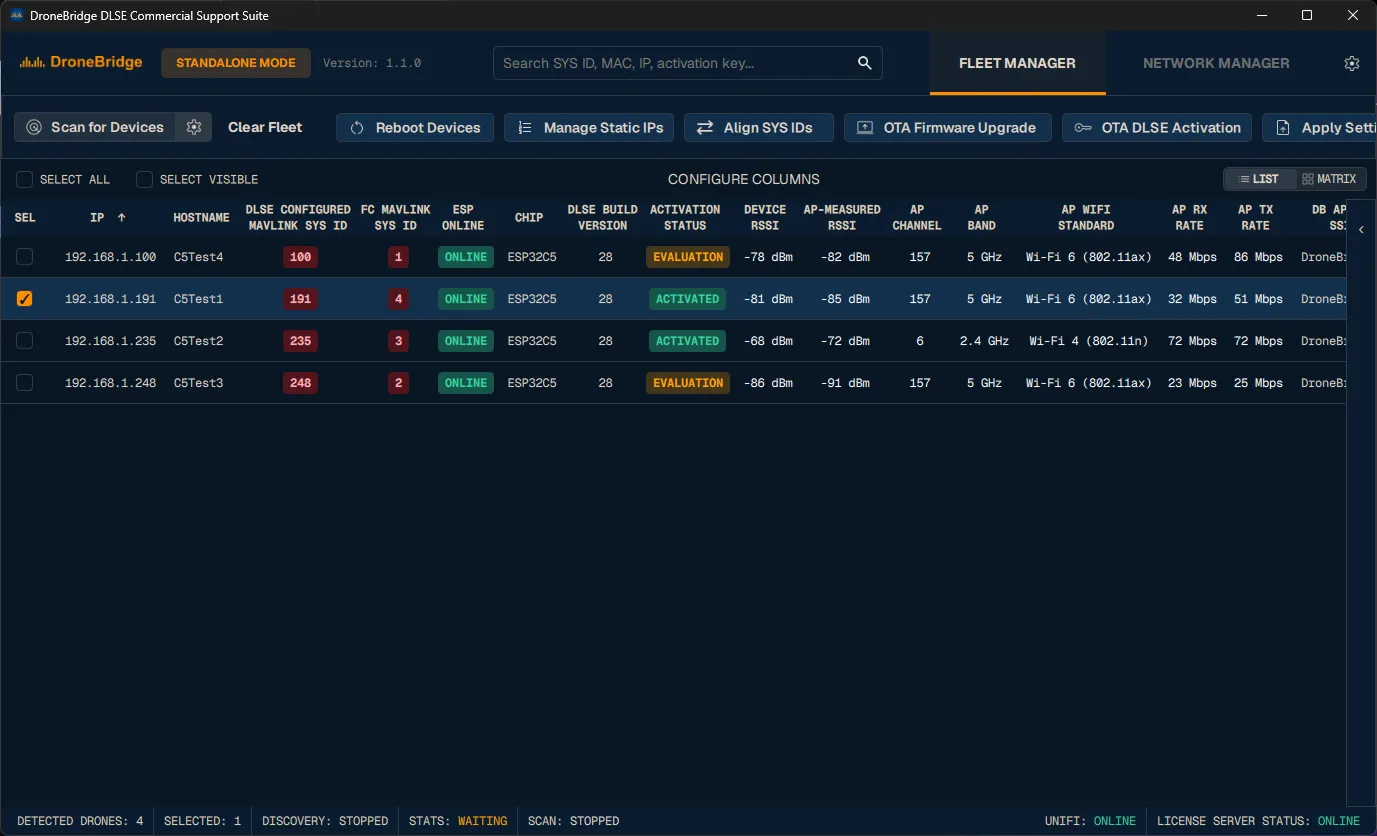
The first step is seeing what is on the network. Fleet Manager discovers DLSE devices through MAVLink and HTTP, then brings their information into a searchable fleet table. Hostnames, IP addresses, firmware versions, activation status, and wireless metrics are available together. You can choose and arrange the columns you need, or switch to a matrix view for another view of the fleet.
Imagine preparing a maintenance session after adding a new batch of aircraft. You want to check which devices still run an older DLSE version, which need activation, and whether their configuration matches the rest of the fleet. The table gives you a place to start. Selecting a device opens its settings, metrics, and embedded web interface for closer inspection.
Configure devices consistently
Configuration checks also extend to device identity. Fleet Manager displays the MAVLink system ID configured in DLSE alongside the ID reported by the connected flight controller. Differences are highlighted, and alignment tools help you set the DLSE ID from the flight controller, IP address, or a manual value. Static IP management provides another way to keep device addressing consistent with your fleet’s setup.
With v1.1.1, you can check several devices and edit their compatible settings together. Shared values remain visible; differing values are marked as mixed.
Only fields you explicitly edit are submitted, so changing one parameter does not overwrite every other difference between devices.
The application asks for confirmation before applying the changes, because updating settings reboots the target devices.
Configuration import and export provide a complementary workflow. Export a working configuration as a CSV file, then use it as a template for other devices. When applying a template to several devices, review the exclusions for device-specific values such as IP address, hostname, and system ID. This lets you share common settings while preserving each unit’s identity.
Activate and update the fleet
Once devices are configured, Fleet Manager also handles OTA DLSE license activation, rebooting, and DLSE firmware updates. You can target selected devices or the detected fleet, with operation status and progress shown per device. For firmware updates, choose a release folder or provide the required binaries. Devices can be updated in parallel within a configurable limit, and failed operations can be reviewed before retrying. These workflows help you carry out a maintenance round without opening each device’s web interface in turn.
Compare both ends of the wireless link
Wireless troubleshooting benefits from another source of information: the access point. Fleet Manager can optionally connect to a UniFi gateway and display observations alongside the readings reported by DLSE. Available information includes access-point-measured signal strength, channel, band, Wi-Fi standard, and transmit and receive link rates. Live throughput is derived from successive traffic-counter readings when the gateway provides them.
Comparing device and access point signal readings can help explain why one aircraft behaves differently from its neighbours. The values describe reception at different ends of the link, so they can differ. Bringing both into the same table gives you more context when investigating a weak connection. UniFi observations are optional; discovery and device management also work directly with DLSE.
Prepare a batch and automate maintenance
The broader Commercial Support Suite also covers the work before a device joins the network. Its serial batch installer, dlse-install, combines firmware flashing, configuration, and license activation. Start with a tested reference configuration, export the settings, and connect ESP32 devices one after another. The script processes each unit using that configuration and can assign sequential suffixes to hostnames, access point names, and static IP addresses.
That gives manufacturers a repeatable starting point for preparing a batch. Existing licenses can be reused when available, and the installer records its actions in logs.
The suite also includes command-line tools for network-based maintenance. Teams can use these tools directly or incorporate them into their own procedures.
| Task | Tool |
|---|---|
| Discover, configure, and maintain devices interactively | Fleet Manager (dlse-ui) |
| Flash, configure, and activate devices over serial | dlse-install |
| Activate DLSE licenses over the network | dlse-activate |
| Update DLSE firmware over the network | dlse-update |
| Reboot devices over the network | dlse-reboot |
The Python library exposes reusable functions for discovery, settings, licensing, and updates, with examples for tasks such as downloading flight-controller logs through the ESP32 bridge. An OpenAPI description documents the DLSE HTTP interface for further integration. The suite is open source under the MIT License, so teams can adapt it to their hardware and processes.
Get started with Fleet Manager
To get started, follow the installation instructions, then launch the desktop application with dlse-ui. Version 1.1.1 requires Python 3.10 or newer, with Windows x64 as the validated desktop platform. Linux and macOS are expected to work but have not been release-qualified. Licensing features require a DroneBridge account and license token. For workflows that use MAVLink ports, close Skybrush Live first so those ports are available, and try changes on a small batch before applying them across a production fleet.
Download Commercial Support Suite v1.1.1 to explore Fleet Manager and the automation tools for your next installation or maintenance session.
Learn more about DroneBridge Drone Light Show Edition.